 GameLogin.live
When IN999 Game is not working, identify the exact stage before changing settings. A site that does not open, a login rejection, a delayed code, an app install error and a pending payment are different problems. Fixing the wrong layer can remove useful evidence or create duplicate requests.
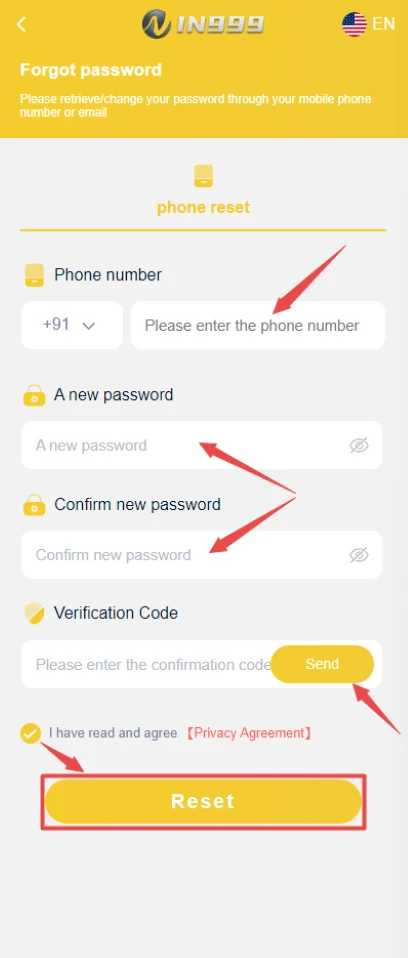
IN999 Game password recovery screen
Use the expected recovery screen when login credentials fail; never send the verification code to another person.
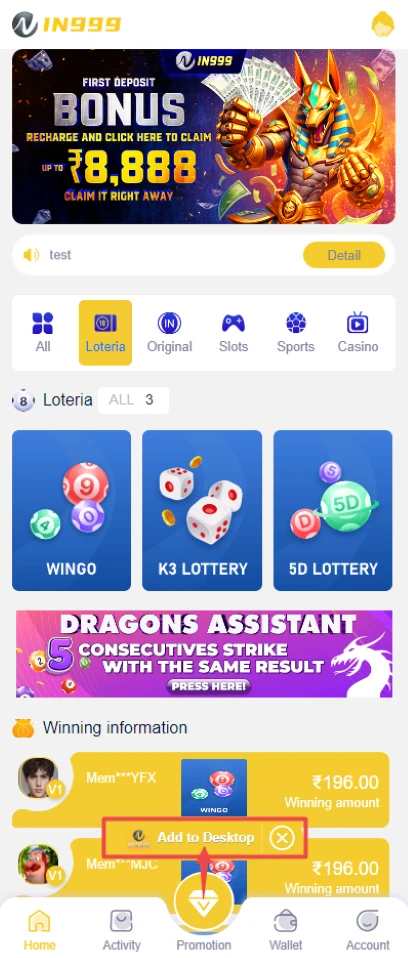
IN999 Game app access entry screen
This account entry helps distinguish an app-access problem from a general login or network problem.
Website or screen does not open
Check whether other websites load, then switch once between Wi-Fi and mobile data. Confirm automatic date/time and close duplicate tabs. Open the expected destination directly. Do not use a random mirror merely because the initial screen is slow.
If the browser shows a certificate or security warning, stop. Clearing a warning or changing device security settings is not a normal login step.
IN999 Game Login not working
Retype the phone number and password, check the country-code format and complete the visible verification control. After several failed attempts, pause instead of retrying continuously. Use Forgot password only when the registered number is available.
Verification code delayed
Check mobile signal, SMS permissions, spam filtering and whether the number is correct. Request the code once and wait. Use the newest code after a resend. Never give the code to another person.
IN999 Game App not working
Download stops
Free storage, use a stable connection and keep the browser open until the file completes.
App will not install
Remove an incomplete file, check Android compatibility and an older conflicting package, then use the expected source.
App remains blank
Restart the app, switch network once and clear only cache. Preserve credentials and transaction evidence before clearing app data.
Update loops
Check whether the update button opens the expected host. Avoid installing repeated packages with slightly different names.
Deposit or withdrawal status does not change
Do not refresh or resubmit continuously. Save the transaction reference, amount, time and visible status. Check Transaction, Deposit History or Withdrawal History. A pending status can require review; a failed bank payment should be confirmed with the bank before retrying.
Unexpected account changes
If the phone number, password, bank details, balance or transactions look unfamiliar, stop wallet actions. Change the password from the expected screen, secure the registered number and preserve screenshots. Do not accept remote-control help.
How to prepare a support message
Use a short factual summary: account identifier with sensitive digits masked, issue type, time, amount if relevant, transaction or period reference, current status and the steps already tried. Redact OTPs, passwords, full card numbers, bank PINs and unrelated personal data.
Before clearing data, reinstalling, resetting a password or changing bank details, save the relevant screen, reference and time.
Five-minute triage order
First check the destination and HTTPS. Second test the connection. Third determine whether the problem affects only login, only the app or the whole site. Fourth preserve any payment or account evidence. Fifth make one targeted change. This order avoids clearing data before the cause is understood.
Changing DNS, installing a VPN, clearing all browser data and reinstalling at the same time can hide the cause and remove useful evidence. Make one change and record the result.
Security-warning situations
Stop when the browser reports a certificate problem, the app requests screen control, a support person asks for an OTP, or the payment page asks for a PIN outside the bank app. These are not normal fixes for a loading or login issue.
Distinguish platform status from account status
If the home page loads but one account cannot log in, the problem may be account-specific. If multiple networks and devices cannot load the destination, the service may be unavailable. If only a payment status is delayed, the account and site can still be working.
Use the exact error and time in a support message. Avoid broad claims such as the whole platform is down when only one screen failed.
DNS, cache and network differences
If one network opens the site and another does not, the issue may involve DNS, filtering or cached routing. Test a second network without installing untrusted DNS or VPN apps. Record the exact error rather than repeatedly changing settings.
Device-specific problems
When the same destination works on another device, compare browser version, storage, time settings, security software and extensions. Avoid disabling antivirus or browser protection merely to force a page to open.
Possible maintenance or route change
A temporary outage or route migration can make an old destination unavailable. Wait for a verified update rather than using a random mirror. A new link should be checked against the expected interface and policies.
IN999 Game not-working checklist
- Exact failing stage identified.
- Destination and HTTPS checked.
- Second network or device tested once.
- Error, time and relevant reference saved.
- No OTP, password or PIN shared.
- Only one targeted fix applied at a time.
Account error versus site error
An invalid-password message is not proof that the whole site is down. A blank page on one device is not proof that the account is blocked. Separate the symptom from the conclusion and test the smallest relevant factor.
Checks after a fix
After access returns, verify that the account identifier, balance, bank details, transaction history and destination have not changed. A technical recovery is incomplete when the account state remains unexplained.
Report a reproducible issue
A reproducible report states the exact URL, device, browser or app version, time, steps, expected result and actual error. Redact private information. This is more useful than a general statement that IN999 Game is not working.
Browser extensions and overlays
Ad blockers, script blockers, translation extensions or security overlays can sometimes break a control. Test a clean browser profile before disabling protection broadly. Remove unknown extensions that appeared without consent.
Communication during an outage
Ignore urgent messages that ask for a payment, OTP or remote access to restore the service. A genuine outage does not require users to expose account secrets.
Final troubleshooting review
Finish with a clear record of the symptom, tests and outcome. If the issue cannot be reproduced or the destination changed, wait for verified information instead of forcing access through an unknown route.